How DNS Resolution Works
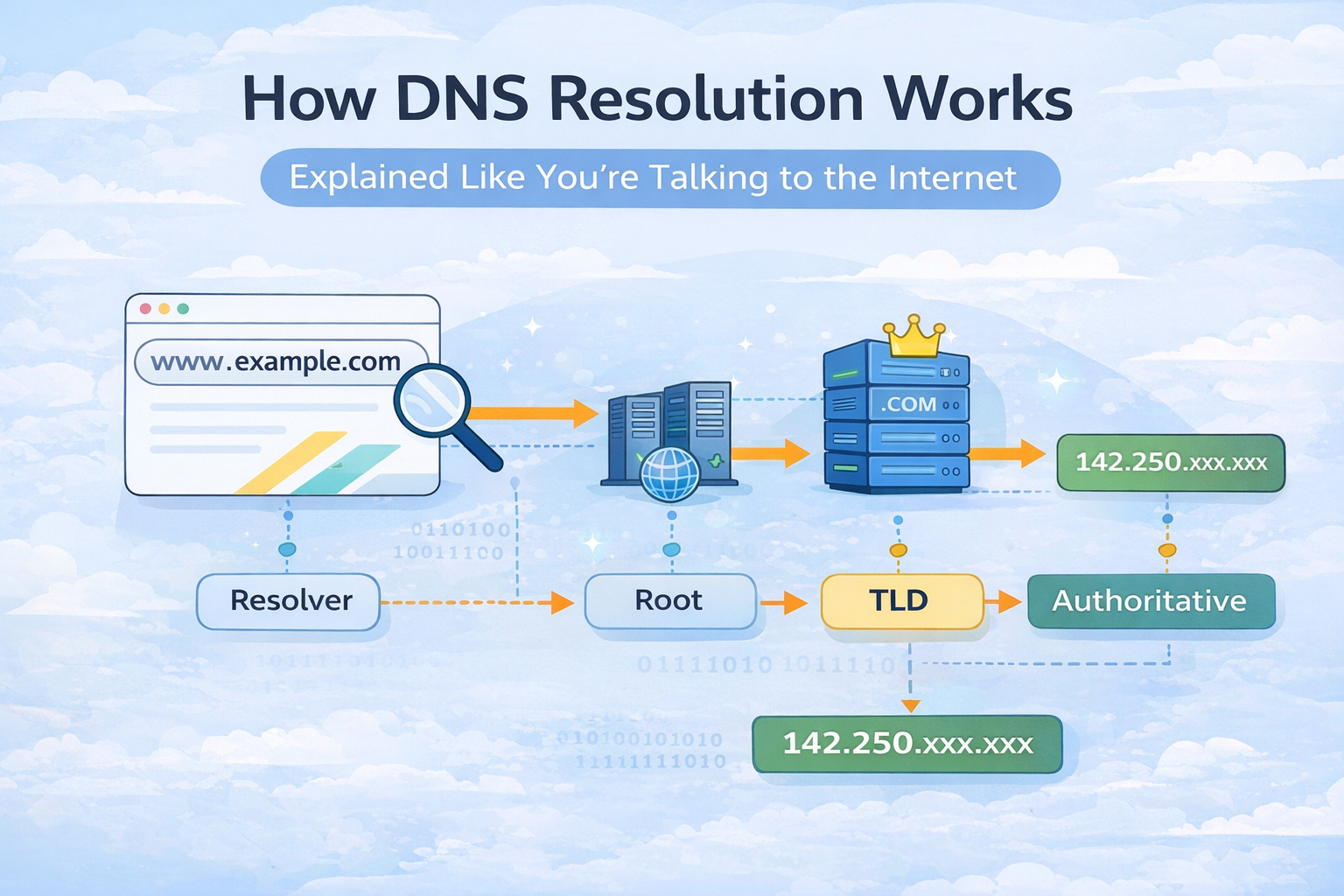
When we type google.com in your browser and press Enter, something magical happens.
Within milliseconds, your screen fills with search results.
But have you ever stopped and asked:
How does my computer know where google.com actually lives?
Who tells it the correct server?
What happens behind the scenes?
That entire behind-the-scenes journey is called DNS Resolution. In this blog, we’ll break DNS down slowly, clearly, and in human words — no textbook language, no copy-paste definitions.
By the end, you’ll understand:
What DNS really is
Why DNS resolution exists
How the
digcommand helps us see DNS in actionRoot, TLD, and Authoritative name servers
The complete DNS resolution flow, step by step
What is DNS?
DNS stands for Domain Name System.
Think of DNS as the phonebook of the internet.
Humans remember names →
google.comComputers understand numbers →
142.250.183.14(IP address)
DNS exists to convert names into numbers. Without DNS, you would have to type IP addresses every time you wanted to open a website.
Imagine typing this every day https://142.250.183.14, Not fun. That’s why DNS exists.
Why Name Resolution Exists?
Computers don’t understand words like:
They only understand IP addresses. So DNS resolves (translates) the name into an IP address. This process is called Name Resolution.
google.com → DNS → 142.250.xxx.xxx
Once your browser gets the IP address, it knows which server to talk to.
What is the dig Command?
dig stands for Domain Information Groper.
It’s a diagnostic tool that lets you:
Ask DNS questions
See DNS answers
Understand how DNS resolution works internally
Think of dig as:
“Hey DNS, show me what’s really going on.”
Our First dig Command
dig google.com
This command asks:
“What is the IP address of google.com?”
The output may look long and scary, but don’t worry, we’ll decode it piece by piece.
DNS is Not One Server (It’s a Hierarchy)
DNS is not a single server. It’s a hierarchical system.
Here’s the order DNS follows.
Root Server
   ↓
TLD Server (.com, .org, .in)
   ↓
Authoritative Server
Let’s understand each one using a real-life analogy.
Root Name Servers (The Top of DNS)
Root servers are the starting point of DNS. They don’t know the IP of google.com. But they know who to ask next.
When we ask:
dig google.com
Your system silently asks the root server:
“Hey, who handles
.comdomains?”
Root server replies:
“Ask the
.comTLD servers.”
Root servers never give IP addresses. They only give directions.
TLD Name Servers (.com, .org, .in)
TLD stands for Top-Level Domain. Examples:
.com.org.in.net
After root servers, DNS goes to the TLD server. TLD server says:
“I don’t know google.com’s IP, but I know who owns it.”
Then it points to the Authoritative Name Server.
Authoritative Name Servers
This is the server that actually knows everything about the domain. Authoritative servers store DNS records like:
A record (IP address)
AAAA (IPv6)
MX (mail servers)
NS (name servers)
When asked:
“What is the IP of google.com?”
The authoritative server finally answers:
google.com → 142.250.xxx.xxx
Full DNS Resolution Flow
Your Browser
     |
     v
Local DNS Resolver
     |
     v
Root Server
     |
     v
TLD Server (.com)
     |
     v
Authoritative Server
     |
     v
IP Address Returned
All this happens in milliseconds
Understanding dig +trace
Now let’s see DNS resolution step by step.
dig google.com +trace
This command forces DNS to show every step. We’ll see:
Root servers
TLD servers
Authoritative servers
Final IP
This is like watching DNS walk the internet.
Understanding dig . NS (Root Servers)
dig . NS
This shows all root name servers.
You’ll see names like:
These are the boss-level servers of DNS.
Understanding dig google.com NS
dig google.com NS
This shows:
Which name servers are responsible for google.com
These are Google’s authoritative servers.
Understanding dig google.com A
dig google.com A
This asks:
“Give me the IPv4 address of google.com”
The answer section will show the IP.
DNS Records
| Record | Meaning |
| A | IPv4 address |
| AAAA | IPv6 address |
| NS | Name server |
| MX | Mail server |
| CNAME | Alias |
Example:
google.com → A → 142.250.xxx.xxx
Why DNS Looks Complicated (But Isn’t)
DNS feels complex because:
Many servers are involved
Tools show raw data
Terminology sounds scary
But conceptually, DNS is just:
“Ask the right person at the right level.”
Just like an office hierarchy:
- Reception → Manager → Team Lead → Employee
How Browsers Use DNS in Real Life
When you type a URL:
Browser checks cache
OS checks cache
Local DNS resolver checks cache
If not found → full DNS resolution starts
Caching makes DNS fast.
Conclusion
DNS is not magic. It’s just a well-organised conversation between servers.
Once you understand:
Who asks
Who answers
Who redirects
DNS becomes one of the most satisfying topics in networking. If this blog made DNS feel clearer than before, you’re on the right path


